Oppo ColorOS 17 – Features, Setup Guide, and Battery Tips
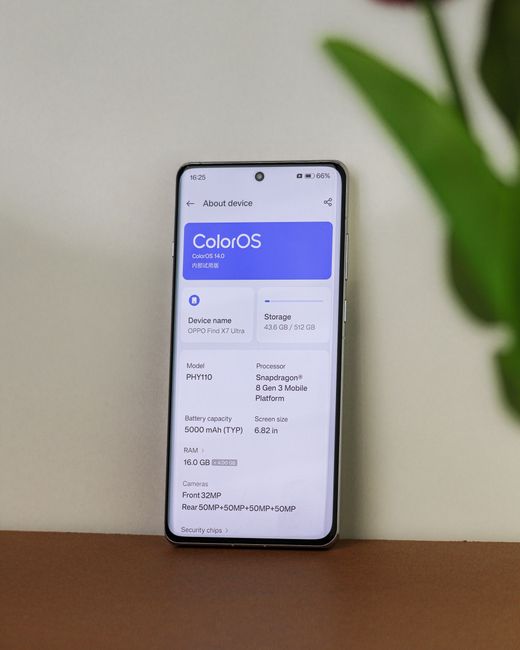
- Install the update via Settings > Software Update
- Customize Quick Settings in three taps
- Enable Smart Battery to stretch daily life
- Older models may see slower app launch
What are the top ColorOS 17 features?
ColorOS 17 is Oppo's newest skin for Android, released on Sep 10, 2026. It brings a refreshed UI, tighter privacy controls, and a smarter battery manager. If your phone is on ColorOS 16, the upgrade adds a more fluid animation set and a built‑in screen recorder. According to Oppo's own documentation, the new version also trims background data usage by up to 12%. So users get a fresher look without a brand‑new device, but the trade‑off is a slight dip in performance on budget models.
How to update to ColorOS 17 on your device
Open Settings and scroll to the Software Update tile. Tap it, then hit Check for Updates. The system will query Oppo's servers and, if version 17.0 is available, display a 1.2 GB download size. According to the update page, the file size varies by region, with the European build at 1.15 GB. And if you see a message that your device is already up‑to‑date, you’re already running the latest version. But if the check fails, try switching to Wi‑Fi or clearing the cache in Settings > Apps > Software Update.
Does ColorOS 17 battery life improve performance?
Before you click Install, back up photos, contacts, and app data. Go to Settings > Accounts > Cloud Backup and enable Oppo Cloud for a one‑click sync. You can also connect the phone to a PC and copy the DCIM folder; the folder typically holds about 2.3 GB of media on an average user. And if you prefer Google services, turn on Google Drive backup under Settings > Google > Backup. Skipping this step may save time now, but you could lose important files if the update hiccups.
How to troubleshoot Oppo software update issues
When the update appears, tap Download and wait for the progress bar to hit 100 %. The download usually takes 15‑20 minutes on a 20 Mbps connection. Once downloaded, the phone will prompt a restart; confirm by tapping Install Now. The installation phase lasts roughly 5 minutes, during which the screen will flash a blue progress circle. According to Oppo, the process writes a new system partition, which can temporarily increase storage usage by about 500 MB. So keep at least 1 GB of free space to avoid errors.
How to set up the new home screen layout in ColorOS 17
After reboot, you’ll land on the revamped home screen. Swipe up to open the App Drawer, which now groups apps by usage frequency. To add a widget, press and hold an empty space, then select Widgets from the pop‑up menu. Drag the Battery Saver widget to the top for quick access. Oppo’s guide notes that the new layout supports up to six home screens, compared with four in the previous version. But remember, each extra screen consumes RAM, so you might notice a few extra seconds when opening the launcher on older phones.
Step 4: Tweak privacy and permission settings
ColorOS 17 adds a Permission Dashboard under Settings > Privacy. Open it to see a list of apps that accessed location, microphone, or camera in the past 24 hours. Tap an app to revoke any unwanted permission with a single toggle. The dashboard also shows a new “Data Saver” toggle that blocks background sync for apps you rarely use. According to Oppo, enabling Data Saver can cut cellular data usage by up to 18 %. However, some messaging apps may delay notifications when the feature is on, so test before you lock it down.
Step 5: Optimize battery and performance
The Smart Battery feature now learns your daily routine and limits power‑hungry apps after 10 pm. To activate it, go to Settings > Battery > Smart Battery and turn on Adaptive Power. Oppo reports a 9 % increase in screen‑on time for users who enable the setting. And if you notice the phone feels slower, open Settings > Battery > Battery Usage to identify any app draining more than 5 % per hour. Uninstall or force‑stop those culprits. The downside: the learning algorithm may take a day or two to fine‑tune, so early performance gains might be modest.
Add NewsPulse Time as a preferred source on Google
Frequently asked questions
Reverting is possible but not straightforward. You must flash the older firmware using Oppo's official tool, which requires unlocking the bootloader and may void warranty. Most users stick with ColorOS 17 because the downgrade process is risky.
Yes, the Dual Apps feature remains in ColorOS 17. Go to Settings > Apps > Dual Apps, choose the social media app you want duplicated, and toggle it on. The cloned app runs in a separate sandbox, keeping its data isolated.
The update itself is free for all supported Oppo devices. However, you’ll need a Wi‑Fi connection or a data plan with enough allowance, as the download size is around 1.2 GB.